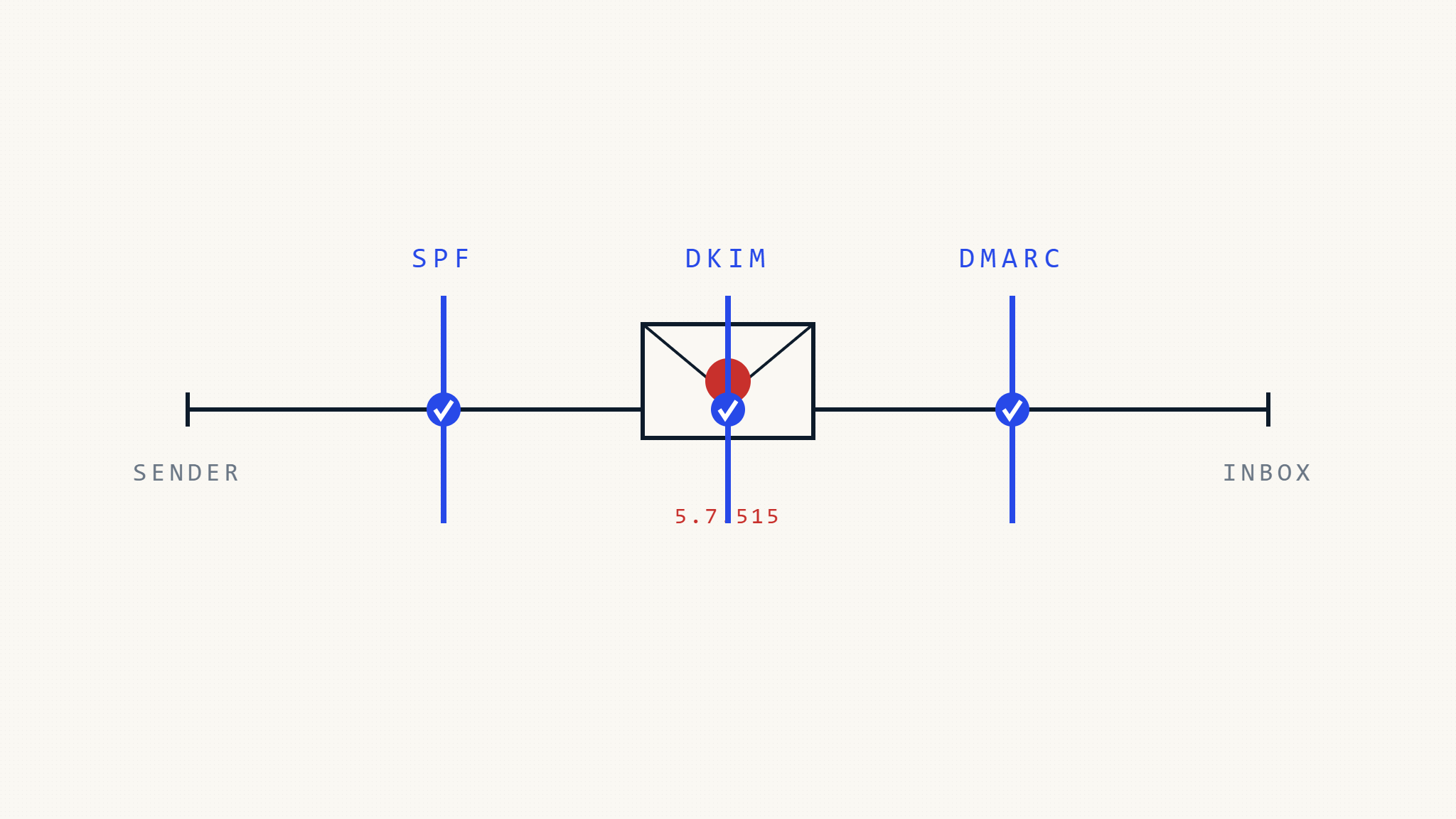
The SMTP error code 5.7.515 has become increasingly common as email providers strengthen their authentication requirements. This error typically appears when your email fails authentication checks, preventing delivery to recipients’ inboxes. Understanding how to resolve 5.7.515 errors through proper DMARC configuration is essential for maintaining reliable email delivery in today’s security-focused environment.
I. Understanding SMTP 5.7.515 Authentication Errors
SMTP 5.7.515 is a permanent failure code that indicates “Access denied, message refused due to authentication failure.” This error occurs when the receiving mail server rejects your message because it fails one or more authentication checks, most commonly:
- SPF (Sender Policy Framework) authentication failure
- DKIM (DomainKeys Identified Mail) signature verification failure
- DMARC policy violation
- IP reputation issues
The error typically manifests with messages like:
- “5.7.515 Authentication required”
- “Access denied, message refused due to security policy”
- “Message rejected due to authentication failure”
Email providers like Microsoft 365, Gmail, and Yahoo have implemented stricter authentication requirements to combat spoofing and phishing attempts. When your domain lacks proper authentication or has misaligned records, legitimate emails can trigger 5.7.515 errors.
II. Common Causes of 5.7.515 Errors
Missing or Misconfigured SPF Records
SPF records specify which IP addresses are authorized to send email for your domain. Without proper SPF configuration, receiving servers cannot verify that your emails originate from legitimate sources.
Typical SPF issues include:
- No SPF record published in DNS
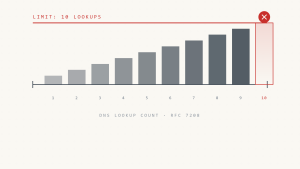
- SPF record exceeding the 10 DNS lookup limit
- Missing include statements for third-party email services
- Incorrect mechanism syntax (ip4, include, all)
DKIM Signature Problems
DKIM adds cryptographic signatures to email headers, allowing receiving servers to verify message authenticity and integrity.
Common DKIM failures:
- Missing DKIM signatures on outbound messages
- Expired or invalid DKIM keys in DNS
- DKIM selector mismatches between email and DNS records
- Body hash verification failures due to message modification
DMARC Policy Violations
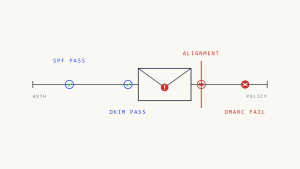
DMARC builds upon SPF and DKIM, providing policy instructions for handling authentication failures. A strict DMARC policy can cause 5.7.515 errors when SPF or DKIM alignment fails.
DMARC-related causes:
- DMARC policy set to “quarantine” or “reject” without proper authentication
- Domain alignment failures (SPF or DKIM domains don’t match From header)
- Forwarded emails failing DMARC checks
- Subdomain policy inheritance issues
III. Step-by-Step Resolution Guide
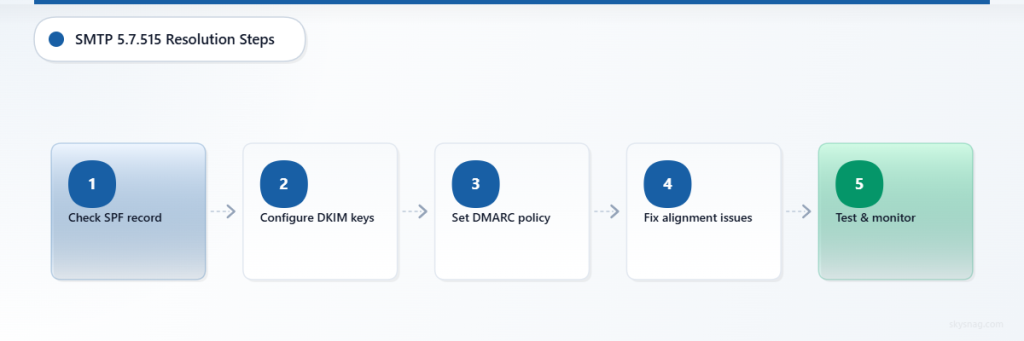
Step 1: Verify Your SPF Record
First, check if your domain has an SPF record and whether it’s configured correctly.
Check SPF record existence:
nslookup -type=TXT yourdomain.comLook for a TXT record starting with “v=spf1”. If no SPF record exists, you’ll need to create one.
Create a basic SPF record:
v=spf1 include:_spf.google.com include:spf.protection.outlook.com ~allThis example authorizes Google Workspace and Microsoft 365 to send email for your domain. Adjust the include statements based on your email providers.
Key SPF considerations:
- Use “~all” (softfail) during testing, then upgrade to “-all” (hardfail) once confirmed working
- Avoid exceeding 10 DNS lookups by consolidating include statements
- Include all legitimate email sources (marketing platforms, notification services, etc.)
Step 2: Configure DKIM Authentication
DKIM requires generating key pairs and publishing public keys in DNS while configuring your email system to sign outbound messages.
For Google Workspace:
- Access Admin Console → Apps → Google Workspace → Gmail
- Navigate to “Authenticate email” settings
- Generate new DKIM key for your domain
- Copy the provided DNS record and add it to your domain’s DNS
For Microsoft 365:
- Access Microsoft 365 Admin Center → Security → Email authentication
- Select your domain and enable DKIM signing
- Copy the two CNAME records provided
- Add CNAME records to your DNS configuration
Verify DKIM setup:
nslookup -type=TXT selector1._domainkey.yourdomain.comReplace “selector1” with your actual DKIM selector and verify the public key appears in DNS.
Step 3: Implement DMARC Policy
DMARC provides the framework for coordinating SPF and DKIM authentication while giving you control over policy enforcement.
Start with a monitoring DMARC policy:
v=DMARC1; p=none; rua=mailto:[email protected]; ruf=mailto:[email protected]; sp=none; adkim=r; aspf=r;DMARC record components:
v=DMARC1: Version identifierp=none: Policy for domain (none, quarantine, reject)rua=: Aggregate report email addressruf=: Forensic report email addresssp=none: Subdomain policyadkim=r: DKIM alignment mode (relaxed)aspf=r: SPF alignment mode (relaxed)
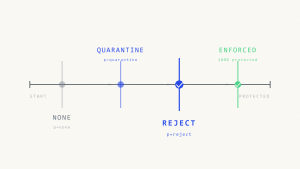
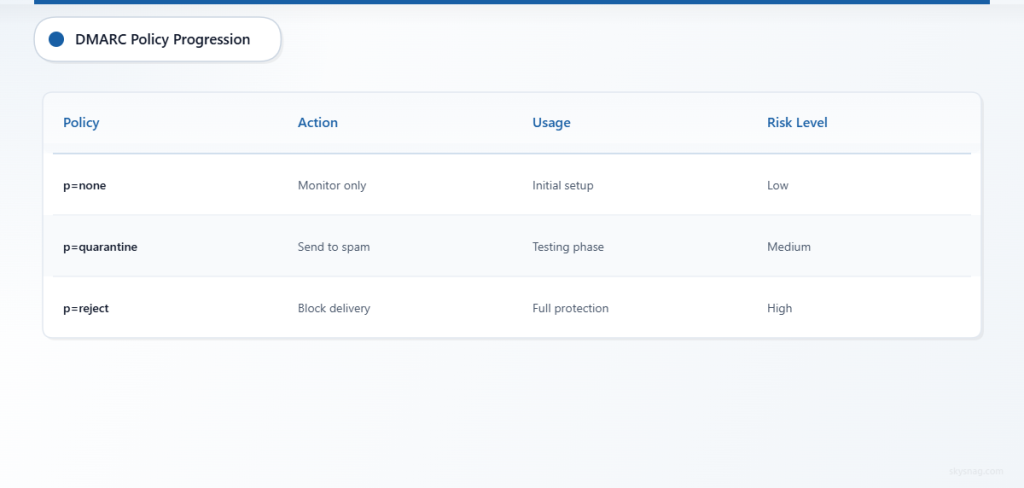
Gradual policy enforcement:
- Start with
p=noneto monitor without blocking - Analyze DMARC reports for 2-4 weeks
- Progress to
p=quarantinewith percentage rollout (pct=25) - Eventually implement
p=rejectfor full protection
Step 4: Address Domain Alignment Issues
Domain alignment ensures that the domain in the From header aligns with domains authenticated by SPF or DKIM.
SPF alignment requirements:
- Return-Path domain must match or be a subdomain of From header domain
- Use relaxed alignment (
aspf=r) to allow subdomain matches - Configure your email system to use aligned return-path addresses
DKIM alignment considerations:
- DKIM signature domain (d= parameter) should align with From header domain
- Relaxed alignment allows subdomain matches
- Ensure consistent domain usage across email infrastructure
Step 5: Monitor and Validate Changes
After implementing authentication records, monitor email delivery and authentication results.
Use email testing tools:
- Send test emails to various providers (Gmail, Outlook, Yahoo)
- Check message headers for authentication results
- Verify SPF, DKIM, and DMARC pass statuses
Monitor DMARC reports:
DMARC aggregate reports provide insights into authentication performance and potential issues. Key metrics to track include:
- Authentication pass rates for SPF and DKIM
- Domain alignment success rates
- Sources of failing authentication
- Policy override reasons
IV. Advanced Troubleshooting Techniques
Analyzing Email Headers
Email headers contain authentication results that help diagnose 5.7.515 errors. Look for headers like:
Authentication-Results: spf=pass smtp.mailfrom=yourdomain.com;
 dkim=pass [email protected];
 dmarc=pass (policy=none) header.from=yourdomain.com
Failed authentication appears as:
Authentication-Results: spf=fail smtp.mailfrom=yourdomain.com;
 dkim=fail [email protected];
 dmarc=fail (policy=quarantine)
Handling Third-Party Email Services
Third-party services (marketing platforms, notification systems, CRM tools) often cause authentication failures when not properly configured.
Best practices for third-party services:
- Add service provider IPs to SPF record using include statements
- Configure DKIM signing through the service provider
- Use dedicated subdomains for bulk email (marketing.yourdomain.com)
- Implement subdomain DMARC policies
Email Forwarding Considerations
Email forwarding can break DMARC authentication because forwarded messages retain the original From header while changing the sending IP address.
Forwarding solutions:
- Use SRS (Sender Rewriting Scheme) for SPF compatibility
- Implement ARC (Authenticated Received Chain) for DMARC preservation
- Consider alternative forwarding methods that preserve authentication
V. Skysnag Protect: Comprehensive Email Authentication Management

Managing email authentication across multiple domains and services can become complex. Skysnag Protect simplifies DMARC implementation and ongoing management through automated monitoring and policy recommendations.
Skysnag Protect provides:
- Automated DMARC record generation with appropriate alignment settings
- Real-time authentication monitoring to detect 5.7.515 triggers
- Comprehensive reporting for SPF, DKIM, and DMARC performance
- Policy optimization recommendations based on your email infrastructure
- Alert systems for authentication failures and policy violations
The platform helps organizations progress from DMARC monitoring to enforcement while maintaining email deliverability and reducing the risk of authentication-related delivery failures.
VI. Prevention and Ongoing Maintenance
Regular Authentication Audits
Conduct monthly reviews of your email authentication configuration:
- Verify SPF records include all authorized sending sources
- Confirm DKIM signatures are valid and keys haven’t expired
- Review DMARC reports for authentication trends
- Test email delivery to major providers
Change Management Procedures
Implement processes for managing email infrastructure changes:
- Update SPF records when adding new email services
- Rotate DKIM keys according to security best practices
- Coordinate DMARC policy changes with stakeholders
- Document all authentication configuration changes
Monitoring and Alerting
Establish monitoring systems to detect authentication issues before they impact users:
- Set up alerts for DMARC policy failures
- Monitor bounce rates and delivery metrics
- Track authentication pass rates across email sources
- Implement automated testing of email authentication
VII. Key Takeaways
Resolving SMTP 5.7.515 authentication errors requires a systematic approach to email authentication implementation. Start by establishing proper SPF records, configure DKIM signing, and implement DMARC policies with gradual enforcement. Regular monitoring and maintenance ensure continued email deliverability while protecting your domain from spoofing attacks.
The key to preventing 5.7.515 errors lies in comprehensive email authentication that aligns with modern security requirements. By properly configuring SPF, DKIM, and DMARC, organizations can ensure reliable email delivery while demonstrating commitment to email security best practices.
Ready to eliminate 5.7.515 authentication errors and improve your email deliverability? Skysnag Protect provides the tools and expertise needed to implement robust email authentication that prevents delivery failures while protecting your domain reputation.