The 550 5.7.515 Access Denied error is one of the most frustrating email delivery failures organizations face, typically indicating that your emails are being blocked due to authentication problems. This Microsoft Exchange error occurs when receiving mail servers reject your messages because they fail authentication checks or violate recipient security policies.
Understanding and resolving this error is crucial for maintaining reliable email communication and protecting your organization’s sender reputation. Let’s explore the root causes and provide step-by-step solutions to get your emails flowing again.
I. Understanding the 550 5.7.515 Error Code
The 550 5.7.515 error is a permanent delivery failure that means “Access Denied, message refused.” This error typically occurs when:
- Your domain lacks proper email authentication records
- DMARC policies are misconfigured or too restrictive
- Your IP address or domain has reputation issues
- The recipient’s server has strict security policies blocking your messages
Unlike temporary delivery failures (4xx codes), the 550 error indicates the receiving server has permanently rejected your email and won’t attempt redelivery.
II. Common Root Causes of Authentication Failures
Missing or Incorrect SPF Records
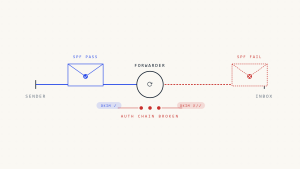
SPF (Sender Policy Framework) records authorize which IP addresses can send email for your domain. Common SPF issues include:
- No SPF record: Your domain doesn’t publish an SPF record
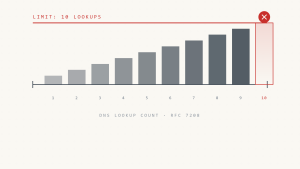
- Incorrect syntax: Malformed SPF records that don’t validate
- Missing include statements: Failing to authorize legitimate sending services
- Overly restrictive policies: SPF records that block legitimate senders
DKIM Authentication Problems
DKIM (DomainKeys Identified Mail) digitally signs your emails to verify authenticity:
- Missing DKIM signatures: Emails sent without proper digital signatures
- Mismatched selectors: DKIM records that don’t match email signatures
- Expired or rotated keys: Outdated DKIM keys that no longer validate
- Third-party service issues: DKIM problems with email service providers
DMARC Policy Conflicts
DMARC builds on SPF and DKIM to provide domain-level protection:
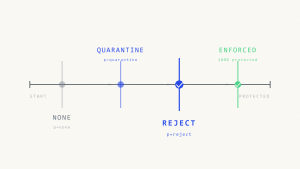
- Strict reject policies: DMARC policies set to “p=reject” causing legitimate email blocks
- Alignment failures: Emails failing SPF or DKIM alignment requirements
- Subdomain policy issues: Incorrect DMARC inheritance for subdomains
- Gradual policy enforcement: Transitioning too quickly from monitor to enforce
III. Step-by-Step Troubleshooting Guide
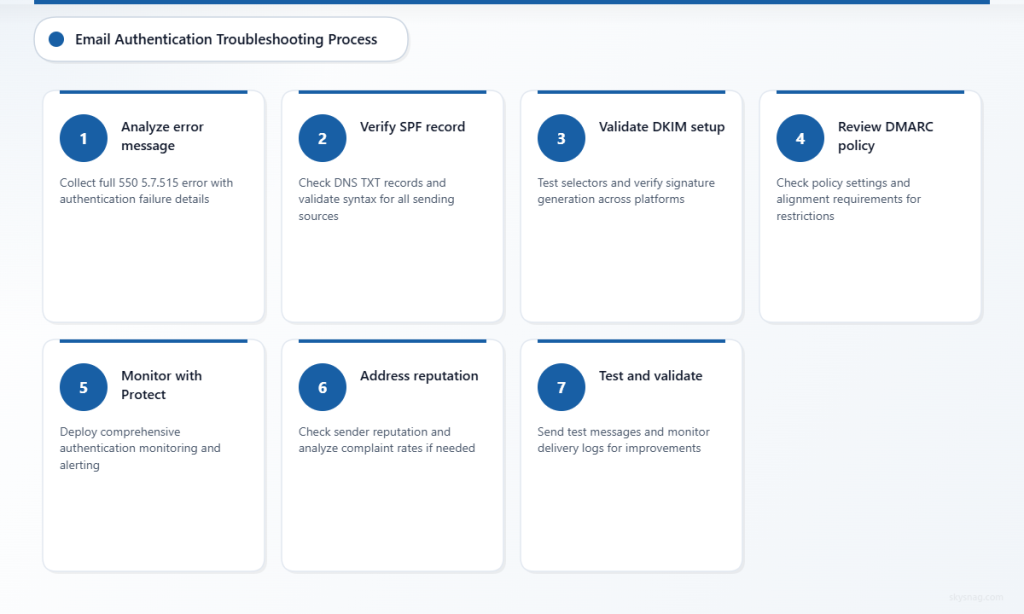
Step 1: Analyze the Complete Error Message
Collect the full error message from your email logs or bounce notification:
550 5.7.515 Access denied, message refused by [server.domain.com]
Additional details: SPF check failed, DMARC policy violation
Look for specific authentication failure indicators:
- SPF check failed
- DKIM signature invalid
- DMARC policy violation
- Domain reputation issues
Step 2: Verify Your SPF Record
Check your current SPF record using DNS lookup tools:
- Query your domain’s TXT records:
dig TXT yourdomain.com - Locate the SPF record starting with
v=spf1 - Validate the syntax using SPF testing tools
- Ensure all legitimate sending sources are included
Common SPF fixes:
- Add missing
include:statements for email services - Fix syntax errors in mechanism formatting
- Update IP addresses for changed infrastructure
- Consider SPF flattening for complex configurations
Step 3: Validate DKIM Configuration
Test your DKIM setup across all sending sources:
- Identify DKIM selectors used by your email infrastructure
- Query DKIM records:
dig TXT selector._domainkey.yourdomain.com - Verify key strength and algorithm compatibility
- Check signature generation in sent messages
DKIM troubleshooting steps:
- Regenerate keys if signatures consistently fail validation
- Coordinate DKIM setup with third-party email services
- Ensure consistent selector usage across sending platforms
- Monitor for key rotation requirements
Step 4: Review DMARC Policy Settings
Examine your DMARC record for overly restrictive policies:
v=DMARC1; p=quarantine; sp=quarantine; pct=100; rua=mailto:[email protected]Key considerations:
- Policy progression: Move gradually from
p=nonetop=quarantinetop=reject - Percentage application: Use
pct=to gradually increase enforcement - Subdomain policies: Review
sp=settings for subdomain handling - Alignment requirements: Consider relaxed alignment if needed
Step 5: Implement Skysnag Protect for Comprehensive Monitoring

Skysnag Protect provides real-time visibility into email authentication failures and helps prevent 550 5.7.515 errors through:
- Automated DMARC monitoring: Track authentication failures across all sending sources
- Policy optimization recommendations: Guidance on safe DMARC policy progression
- Multi-source visibility: Consolidated reporting across email infrastructure
- Alert systems: Immediate notifications when authentication issues arise
This comprehensive monitoring helps identify authentication problems before they cause widespread delivery failures.
Step 6: Address Reputation Issues
If authentication records are correct but errors persist:
- Check sender reputation using reputation monitoring tools
- Review complaint rates and unsubscribe metrics
- Analyze sending patterns for volume spikes or unusual behavior
- Coordinate with receiving domains for potential allowlisting
Step 7: Test and Validate Changes
After implementing fixes:
- Send test messages to various email providers
- Monitor delivery logs for continued 550 errors
- Check DMARC reports for authentication success rates
- Verify with recipient domains if issues persist
IV. Advanced Troubleshooting Techniques
Third-Party Service Coordination
Many organizations use multiple email services that must work together:
- Marketing platforms: Ensure DKIM and SPF coverage for all services
- Transactional email: Coordinate authentication across different providers
- Legacy systems: Update older email infrastructure to support modern authentication
- Cloud migrations: Maintain authentication continuity during platform changes
DNS Propagation and Timing
DNS changes can take time to propagate globally:
- Allow 24-48 hours for DNS record updates to fully propagate
- Use multiple DNS servers to verify record consistency
- Consider TTL values when planning authentication updates
- Monitor from different geographic locations to ensure global propagation
Vendor-Specific Considerations
Different email providers have varying authentication requirements:
- Microsoft 365: Particularly strict about DMARC compliance
- Google Workspace: Strong emphasis on DKIM signature validation
- On-premises Exchange: May require additional connector configuration
- Third-party security services: Consider additional filtering layers
V. Prevention and Best Practices
Gradual DMARC Policy Implementation
Implement DMARC policies progressively to avoid authentication disruptions:
- Start with monitoring: Deploy
p=noneto collect baseline data - Analyze reports thoroughly: Understand all legitimate sending sources
- Fix authentication gaps: Ensure SPF and DKIM coverage is complete
- Gradually increase enforcement: Move to
p=quarantinethenp=reject
Regular Authentication Audits
Establish ongoing monitoring practices:
- Monthly DMARC report reviews: Track authentication success rates
- Quarterly SPF record audits: Verify all sending sources remain authorized
- Annual DKIM key rotation: Maintain cryptographic key strength
- Continuous reputation monitoring: Watch for sender score changes
Documentation and Change Management
Maintain clear documentation of email authentication configurations:
- Record all SPF includes: Document purpose of each authorization
- Track DKIM selector usage: Map selectors to specific sending sources
- Document DMARC policy decisions: Record rationale for policy choices
- Coordinate infrastructure changes: Ensure authentication updates accompany email system changes
VI. When to Escalate Issues
Some 550 5.7.515 errors require additional support:
- Persistent errors after authentication fixes: May indicate reputation or policy issues
- Vendor-specific blocking: Some receiving domains may require direct coordination
- Complex multi-tenant environments: May need specialized configuration approaches
- Compliance requirements: Certain industries may have specific authentication mandates
VII. Key Takeaways
The 550 5.7.515 Access Denied error typically stems from email authentication failures that can be systematically diagnosed and resolved. Success requires:
- Comprehensive authentication setup: Proper SPF, DKIM, and DMARC implementation
- Gradual policy enforcement: Avoiding overly aggressive DMARC policies
- Continuous monitoring: Regular review of authentication performance and delivery metrics
- Proactive reputation management: Maintaining positive sender reputation alongside technical compliance
Implementing Skysnag Protect provides the visibility and automation needed to prevent authentication failures and maintain reliable email delivery. With proper monitoring and gradual policy implementation, organizations can eliminate 550 5.7.515 errors while strengthening their email security posture.
Ready to resolve your email authentication challenges? Discover how Skysnag Protect can help you implement bulletproof email authentication and eliminate delivery failures.