Third Party Email Senders DKIM Instructions
How to Set Up a DKIM Record for Intercom?
October 11, 2023 | 2 min read

Generate DKIM Record
Your Generated DKIM Records
Keep the private key secure and add the DKIM record to your DNS
Your Generated DKIM Records
Keep the private key secure and add the DKIM record to your DNS
Generated DKIM Record
Private Key
You must enter the private key in your DKIM signer. It must be kept secret, as anyone with access to it can stamp tokens pretending to be you
••••••••••••••••••
Public Key
The public key is the original raw 'X509' format. It's not usable in DNS directly, but it might be useful for something else.
Subdomain
Publish the generated record text on this DNS host. Format: [selector]._domainkey.[yourdomain.com] — never use @ in DNS records.
DomainKeys Identified Mail (DKIM) is a method for email senders to digitally sign email messages in a way that can be verified by email receivers. This allows receivers to verify that the message truly came from the sender, and has not been tampered with. DKIM is intended to address some of the flaws in the existing email system, such as spoofing, phishing, and message tampering.
When sending emails, Intercom uses its address as the default outbound address. This is the same address that appears in your mails’ “From:” field. However, you may modify this to set up your emails to be sent from a custom domain and display your company name in place of the default. Let’s understand how.
How to Configure your custom domain on Intercom
Using a custom domain, Intercom users can send emails by following the steps:
- Go to App Settings > Outbound > Addresses & domains
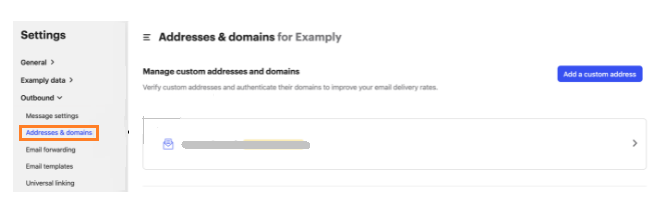
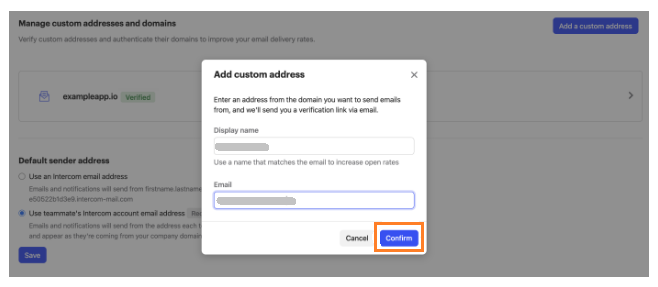
- Click on “Add a custom address“

- Simply insert your name and email address.
- Select “Confirm.”
How to use DKIM for Intercom to Verify Your Domain
When DKIM email authentication is not used, your custom domain on Intercom appears as follows:

How to Configure DKIM on Intercom
- Access your Intercom account.
- Open the app’s settings
- Go to the Email addresses & domains page.
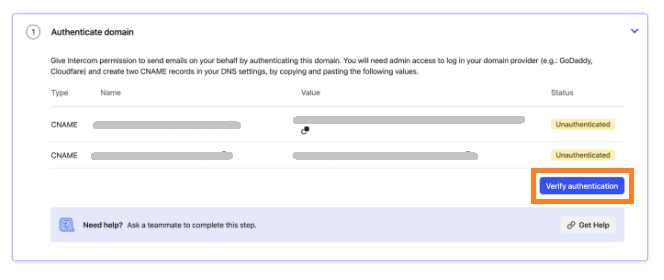
- You may discover 2 CNAME records produced by Intercom on this page.
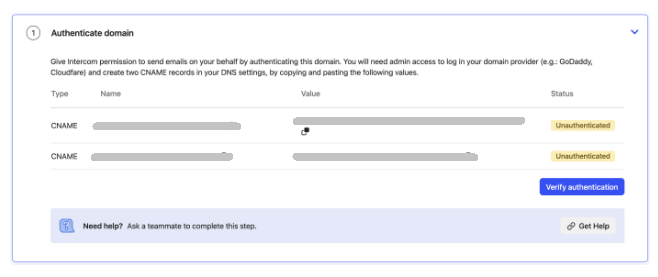
- The DNS records should be copied and pasted.
- Allocate time for your DNS to process the adjustments. Re-login to Intercom and select the “Verify Authentication.”
Use our free DKIM record lookup tool to validate the published DKIM record.
Enable DMARC for your domains to protect against spoofing. Sign up for a free trial today!
For more information on Intercom DKIM setup, you can refer to their reference documentation
Ready to secure your sending identity and protect your domain reputation? Sign up today.
Get started