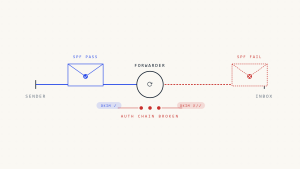
Managing SPF records becomes increasingly complex as your email infrastructure grows. When your SPF record exceeds the 10 DNS lookup limit, legitimate emails start failing authentication, creating delivery problems that can cripple your business communications.
SPF flattening offers a strategic solution to this common email authentication challenge. This comprehensive guide walks you through the complete process of optimizing your SPF records while maintaining robust email security.
I. Understanding the SPF DNS Lookup Problem
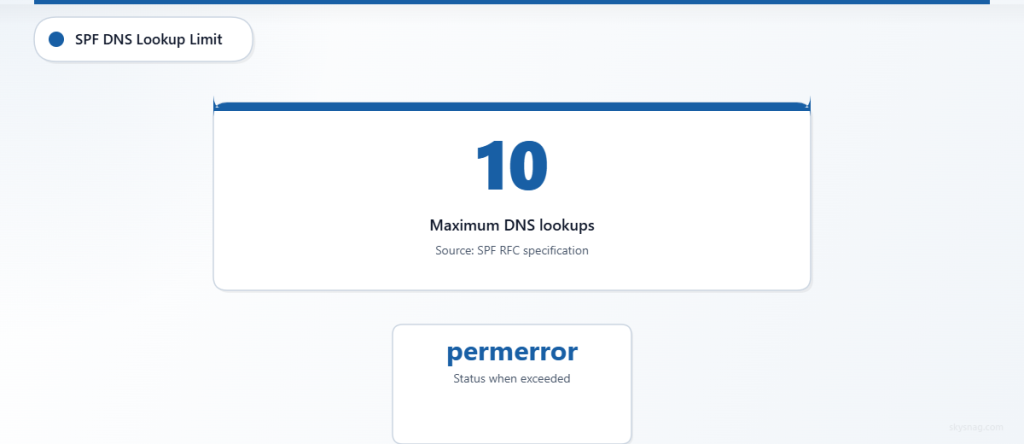
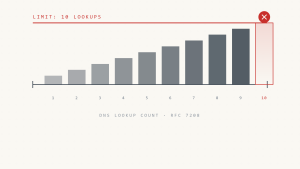
SPF (Sender Policy Framework) records protect your domain from email spoofing by specifying which mail servers can send emails on your behalf. However, SPF has a critical limitation: the 10 DNS lookup limit.
What Counts as a DNS Lookup
Each of these SPF mechanisms triggers a DNS lookup:
include:statementsa:mechanismsmx:mechanismsexists:mechanismsredirect:modifiers
The following do NOT count toward the limit:
ip4:andip6:mechanismsallmechanismsptr:mechanisms (though discouraged)
Why the Limit Exists
The 10 lookup limit prevents infinite recursion loops and reduces DNS server load. When receivers process your SPF record, they count every DNS query required to fully resolve all mechanisms. Exceeding this limit results in a “permerror” status, causing legitimate emails to fail SPF authentication.
II. When SPF Flattening Becomes Necessary
Consider SPF flattening when you experience:
- Multiple email service providers: Using services like Microsoft 365, Google Workspace, Salesforce, and MailChimp simultaneously
- Complex include chains: Third-party services that reference additional SPF records
- Delivery failures: Emails marked as spam or rejected due to SPF permerror
- DNS timeout issues: Slow DNS responses causing authentication delays
A typical problematic SPF record might look like:
v=spf1 include:_spf.google.com include:spf.protection.outlook.com include:_spf.salesforce.com include:servers.mcsv.net include:_spf.createsend.com include:mail.zendesk.com include:_netblocks.mimecast.com include:spf.mandrillapp.com ~allThis record requires 8+ DNS lookups and will likely exceed the limit when fully resolved.
III. SPF Flattening Techniques

Manual IP Resolution Method
The most straightforward approach involves replacing include: statements with direct IP addresses:
- Query each included domain’s SPF record:
   dig TXT _spf.google.com
dig TXT spf.protection.outlook.com- Extract IP ranges from results:
- Google: 216.239.32.0/19, 64.233.160.0/19, 66.249.80.0/20
- Microsoft: 40.92.0.0/15, 40.107.0.0/16, 52.100.0.0/14
- Create flattened record:
v=spf1 ip4:216.239.32.0/19 ip4:64.233.160.0/19 ip4:40.92.0.0/15 ip4:40.107.0.0/16 ~allAutomated SPF Flattening Tools
Professional SPF management platforms automate this process:
- Real-time monitoring: Automatically detect when third-party SPF records change
- Dynamic updates: Instantly update your SPF record with new IP ranges
- Validation testing: Verify SPF records stay within the 10 lookup limit
- Change notifications: Alert you when upstream providers modify their records
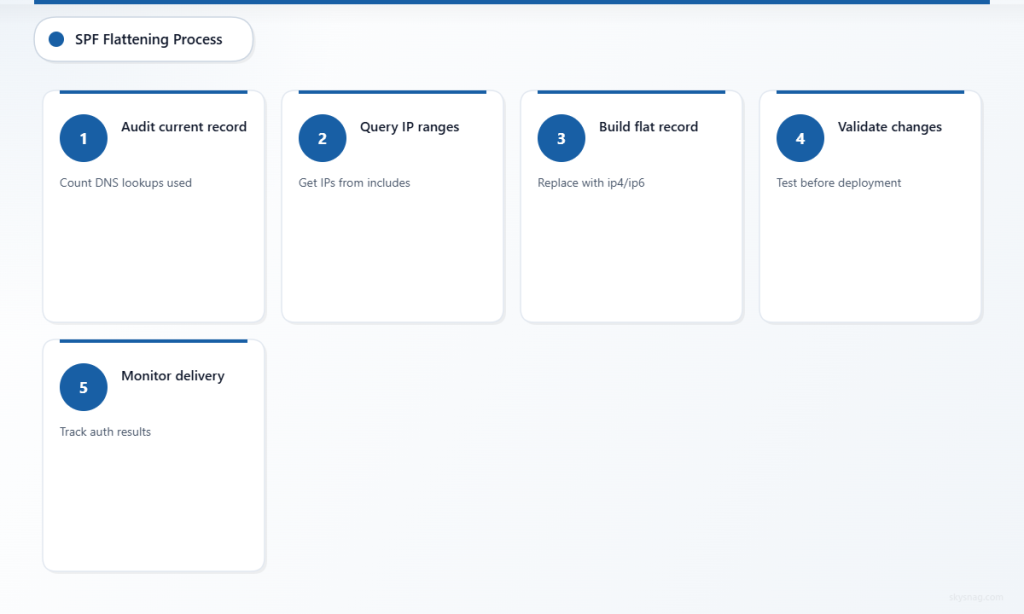
IV. Step-by-Step SPF Flattening Implementation
Step 1: Audit Your Current SPF Record
Document your existing SPF record and count DNS lookups:
# Check current SPF record
dig TXT yourdomain.com

# Test SPF lookup count
nslookup -type=TXT yourdomain.com
Create a spreadsheet listing:
- Each include statement
- The service it represents
- Number of lookups it generates
- IP ranges it resolves to
Step 2: Gather IP Information
For each email service provider, collect their current IP ranges:
Google Workspace:
dig TXT _spf.google.comMicrosoft 365:
dig TXT spf.protection.outlook.comSalesforce:
dig TXT _spf.salesforce.comDocument these IPs with timestamps, as they may change periodically.
Step 3: Create Your Flattened Record
Build a new SPF record using only IP mechanisms:
v=spf1 ip4:40.92.0.0/15 ip4:40.107.0.0/16 ip4:216.239.32.0/19 ip4:64.233.160.0/19 ip4:198.2.128.0/18 ip4:148.105.8.0/21 ~allStep 4: Validate the New Record
Test your flattened SPF record before implementation:
- Use SPF validation tools to confirm lookup count stays under 10
- Verify all legitimate mail sources are included
- Check for syntax errors or typos
- Test with email authentication checkers
Step 5: Implement with Monitoring
Deploy your flattened SPF record with careful monitoring:
- Gradual rollout: Consider using a subdomain for initial testing
- Monitor delivery rates: Watch for any authentication failures
- Set up alerts: Track SPF pass/fail rates through email analytics
- Document changes: Maintain records of when and why changes were made
V. Managing Flattened SPF Records
Monitoring Third-Party Changes
Email service providers occasionally update their IP ranges. Establish monitoring procedures:
- Weekly IP checks: Verify current IPs against your SPF record
- Change detection alerts: Use monitoring tools to identify upstream modifications
- Emergency update procedures: Prepare rapid response for critical IP changes
- Backup communication channels: Ensure you can still send emails during updates
Maintenance Best Practices
Regular audits: Review your SPF record monthly for accuracy and optimization opportunities.
Version control: Track SPF record changes with timestamps and justifications.
Testing protocols: Validate every change in a test environment before production deployment.
Documentation updates: Keep IP range documentation current with source verification.
Automated vs. Manual Management
Manual management works for smaller organizations with stable email infrastructure but requires consistent monitoring and quick response to provider changes.

Automated solutions like Skysnag Protect handle the complexity of SPF flattening automatically, providing real-time monitoring, dynamic updates, and comprehensive email authentication management across your entire domain portfolio.
VI. Troubleshooting Common SPF Flattening Issues
Record Length Limitations
SPF records cannot exceed 255 characters in a single DNS TXT string. If your flattened record approaches this limit:
- Consolidate IP ranges: Combine adjacent ranges where possible
- Use CIDR notation efficiently: Optimize network masks
- Split into multiple strings: Use DNS TXT record concatenation
- Prioritize critical senders: Include only essential email sources
IP Range Changes
When third-party providers update their IP ranges without notice:
- Identify the issue: Monitor bounce-back messages for SPF failures
- Quick resolution: Temporarily add the new IP range while investigating
- Root cause analysis: Determine which provider changed their ranges
- Update documentation: Record the change and establish better monitoring
False Positive Failures
If legitimate emails fail SPF authentication after flattening:
- Verify IP completeness: Ensure all provider IPs are included
- Check for typos: Validate IP addresses and CIDR notation
- Test authentication flow: Use email testing tools to trace SPF evaluation
- Review recent changes: Identify if provider modifications caused issues
VII. Advanced SPF Optimization Strategies
Strategic Include Usage
Maintain some include: statements for providers that rarely change while flattening high-volatility services:
v=spf1 include:stable-provider.com ip4:198.2.128.0/18 ip4:148.105.8.0/21 ~allSubdomain Delegation
Split email services across subdomains to distribute DNS lookup load:
# Main domain
v=spf1 include:marketing.yourdomain.com include:support.yourdomain.com a ~all

# Marketing subdomain
v=spf1 ip4:198.2.128.0/18 ip4:148.105.8.0/21 ~all

# Support subdomain
v=spf1 ip4:40.92.0.0/15 ip4:40.107.0.0/16 ~all
Hybrid Approaches
Combine flattening with smart include strategies based on your infrastructure:
- Flatten volatile providers: Convert frequently changing services to IPs
- Keep stable includes: Maintain include statements for reliable providers
- Monitor both approaches: Track which method works best for each service
VIII. Measuring SPF Flattening Success
Key Performance Indicators
Track these metrics to evaluate your SPF flattening implementation:
- SPF pass rate: Percentage of emails passing SPF authentication
- Delivery success rate: Emails reaching recipient inboxes
- DNS lookup count: Staying consistently under the 10 lookup limit
- Authentication latency: Time required for SPF record resolution
Monitoring Tools and Techniques
Implement comprehensive monitoring to ensure ongoing success:
- DMARC reports: Analyze authentication results across all email streams
- Email delivery analytics: Track delivery rates and spam folder placement
- DNS monitoring: Watch for resolution timeouts or errors
- Third-party validators: Use external tools to verify SPF record health
IX. Key Takeaways
SPF flattening resolves DNS lookup limit issues by converting include statements to direct IP addresses, ensuring your legitimate emails pass authentication. Success requires ongoing monitoring of third-party IP changes, regular validation of your SPF records, and strategic maintenance procedures.
Manual SPF flattening works for simple configurations but becomes unmanageable as your email infrastructure grows. Automated solutions provide the reliability and monitoring necessary for enterprise email authentication.
Ready to eliminate SPF lookup limit problems and ensure consistent email delivery? Skysnag Protect automates SPF flattening with intelligent monitoring, dynamic updates, and comprehensive email authentication management.