Setting up DKIM for Gmail prevents unauthorized senders from spoofing your domain and improves email deliverability. Whether you’re using Google Workspace (formerly G Suite) or Gmail with a custom domain, proper DKIM configuration ensures your messages pass authentication checks and reach recipient inboxes.
This guide covers DKIM setup for Google Workspace domains, common configuration mistakes, and what happens when DKIM fails despite correct implementation.
I. What DKIM Does (and What It Can’t Prevent)
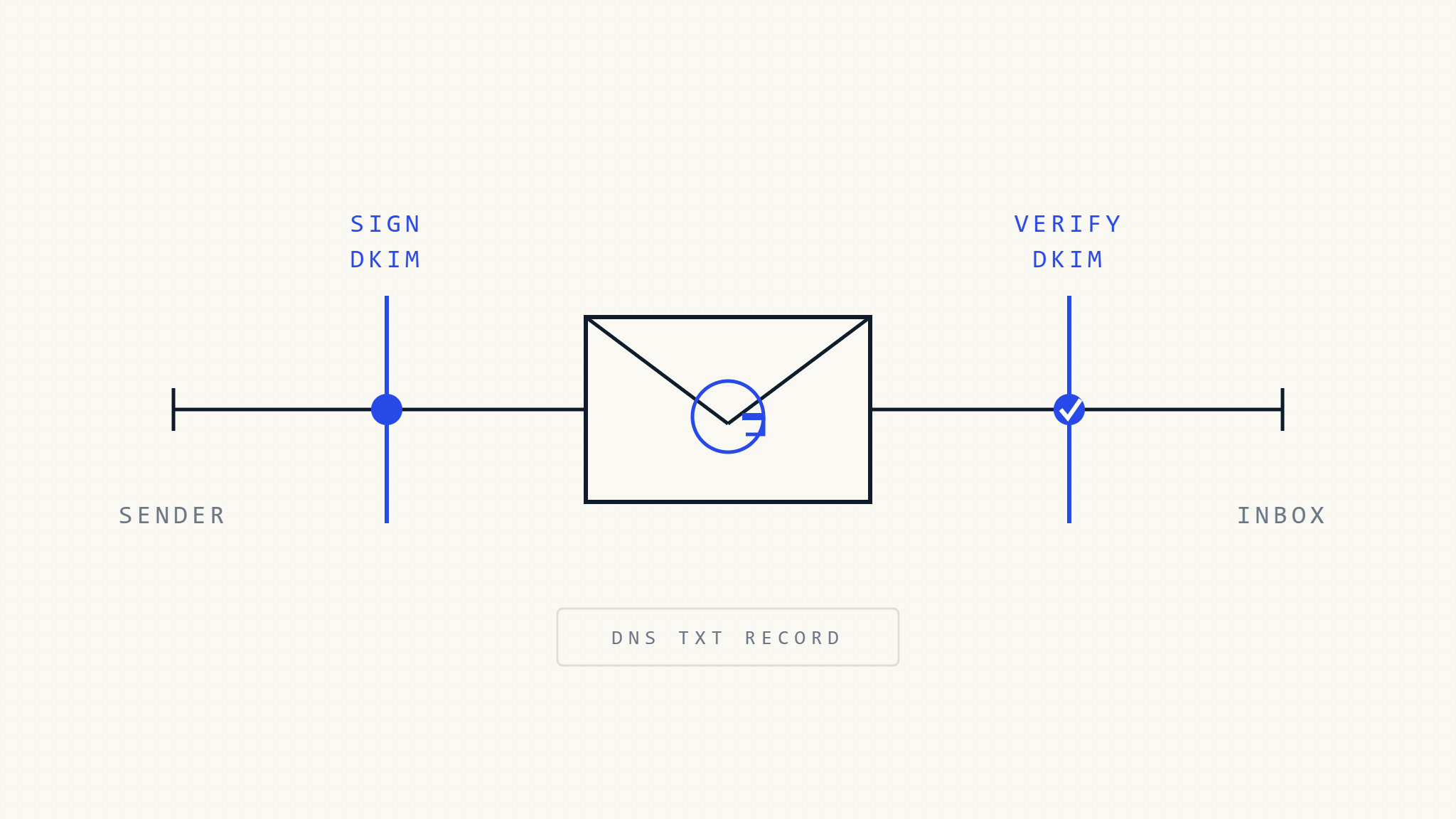
DKIM (DomainKeys Identified Mail) adds a cryptographic signature to outgoing emails. The receiving server verifies the signature using a public key published in your domain’s DNS records.
What DKIM validates:
- The message body hasn’t been altered in transit
- The signing domain authorized the message
- The DKIM signature matches the declared domain
Where DKIM can fail:
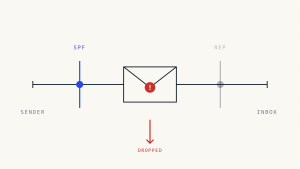
- Forwarding breaks signatures: When an email is forwarded through a mailing list or auto-forwarder, content modifications (like footer additions) invalidate the DKIM signature
- Alignment issues: DKIM passing doesn’t guarantee DMARC passing — the
d=domain in the DKIM signature must align with theFrom:header domain - Key rotation problems: If you generate a new DKIM key pair but forget to update DNS, all outgoing messages will fail DKIM validation
- DNS propagation delays: Publishing a new DKIM public key can take minutes to hours to propagate, causing temporary validation failures
DKIM is authentication, not authorization. A valid DKIM signature proves the message came from the signing domain, but it doesn’t prove the sender is legitimate or wanted.
II. Prerequisites: Google Workspace vs Gmail Personal Accounts
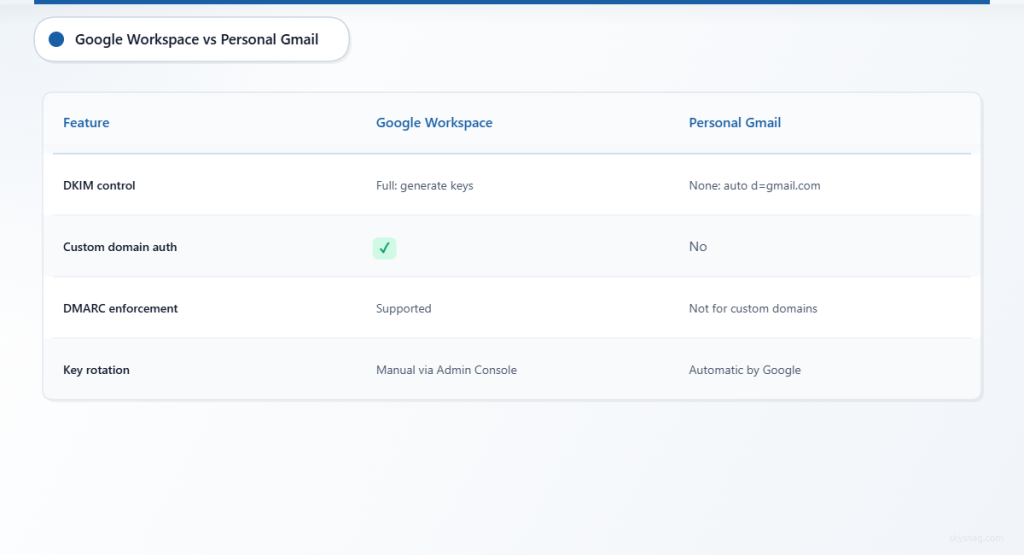
Google Workspace accounts (business domains using Gmail infrastructure):
- Full DKIM control
- You generate keys and publish DNS records
- Required for custom domain DMARC enforcement
Personal Gmail accounts (@gmail.com):
- Google signs messages automatically using
d=gmail.com - You cannot configure DKIM for @gmail.com addresses
- If you send from a custom domain through Gmail personal accounts, those messages won’t have DKIM signatures for your domain
This guide applies to Google Workspace domains only. If you’re using Gmail personal accounts with a custom “Send mail as” address, your messages will lack proper domain authentication.
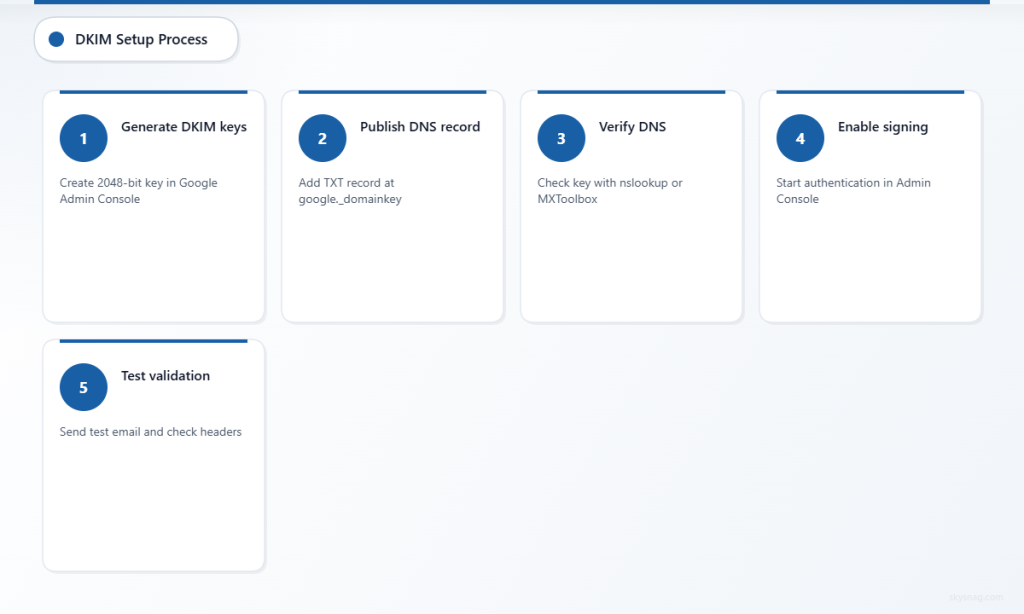
III. Step 1: Generate DKIM Keys in Google Workspace Admin Console
Log in to the Google Workspace Admin Console with super admin privileges.
- Navigate to Apps → Google Workspace → Gmail → Authenticate email
- Select your domain from the dropdown
- Click Generate new record
- Choose a DKIM key length:
- 2048-bit (recommended): Stronger cryptographic security, supported by all major mailbox providers
- 1024-bit: Older standard, use only if DNS TXT record length is a constraint
- Enter a DKIM prefix selector (default:
googleresults in selectorgoogle._domainkey) - Click Generate
Google will display two pieces of information:
- DNS Host/Name: The subdomain where you’ll publish the public key (e.g.,
google._domainkey.example.com) - TXT Record Value: The public key string starting with
v=DKIM1; k=rsa; p=...
Failure condition: If you generate a new key but don’t update DNS, outgoing messages will fail DKIM validation immediately. Google starts signing with the new private key as soon as you click “Start Authentication,” even if the public key isn’t published yet.
IV. Step 2: Publish the DKIM Public Key in DNS
Log in to your DNS provider (Cloudflare, GoDaddy, Route 53, Namecheap, etc.).
Add a TXT record with these values:
| Field | Value |
|---|---|
| Type | TXT |
| Name/Host | google._domainkey or full subdomain google._domainkey.example.com (depends on DNS provider UI) |
| Value | Paste the full public key string from Google Admin Console, including v=DKIM1; k=rsa; p=... |
| TTL | 3600 (1 hour) or default |
Critical formatting rule: Some DNS providers require you to remove quotes around the TXT value. Others auto-add them. If your DNS interface shows the value wrapped in quotes like "v=DKIM1; k=rsa; p=...", that’s normal — but don’t manually add extra quotes.
DNS propagation time: Changes can take 5 minutes to 48 hours depending on your provider and TTL settings. Google recommends waiting 24-48 hours before enabling DKIM signing.
Where DKIM DNS publication can fail:
- Subdomain typo: Publishing to
googl._domainkeyinstead ofgoogle._domainkeycauses all messages to fail DKIM - Truncated key: Some DNS interfaces have character limits. If the public key is cut off, DKIM validation fails
- Wrong record type: Publishing as A, CNAME, or MX instead of TXT makes the key unreadable
V. Step 3: Verify DNS Publication
Before enabling DKIM signing, confirm the public key is published correctly.
Use a DNS lookup tool:
nslookup -type=TXT google._domainkey.example.comOr online checkers:
Expected result: You should see the full public key string starting with v=DKIM1; k=rsa; p=MII...
If the lookup fails:
- Double-check the subdomain name (
google._domainkey) - Verify you published a TXT record, not another type
- Wait longer for DNS propagation
- Check if your DNS provider requires special formatting for long TXT records
VI. Step 4: Enable DKIM Signing in Google Workspace
Return to the Google Workspace Admin Console → Gmail → Authenticate email.
- Locate the domain and DKIM configuration you created
- Click Start authentication
What happens now:
- Google begins signing all outgoing messages from your domain with the private key
- The
d=value in the DKIM signature will match your domain (e.g.,d=example.com) - Receiving servers will query
google._domainkey.example.comfor the public key
Failure condition: If you click “Start authentication” before DNS propagates, every outgoing message will fail DKIM validation until the public key becomes available. You’ll see DKIM signature verification errors in bounce messages or DMARC reports.
Safe approach: Wait 24-48 hours after publishing the DNS TXT record before enabling DKIM signing. This ensures the public key is globally propagated.
VII. Step 5: Test DKIM Signing
Send a test email from your Google Workspace account to a personal email address (Gmail, Outlook, Yahoo, ProtonMail, etc.).
Check authentication headers:
In Gmail: Open the message, click the three-dot menu, select Show original. Look for:
DKIM-Signature: v=1; a=rsa-sha256; c=relaxed/relaxed;
        d=example.com; s=google;
        h=from:to:subject:date;
        bh=...;
        b=...
Authentication-Results: mx.google.com;
       dkim=pass [email protected] header.s=google header.b=...
In Outlook/Microsoft 365: View message source or check Authentication-Results header for dkim=pass.
What to validate:
d=example.commatches your sending domains=googlematches your selectordkim=passin Authentication-Results
If DKIM fails:
- dkim=temperror: DNS lookup timed out (wait longer for propagation)
- dkim=permerror: Public key not found or malformed
- dkim=fail: Signature doesn’t match (message was modified, or wrong key in DNS)
- No DKIM signature at all: DKIM signing not enabled in Google Workspace, or you’re sending from a personal Gmail account
VIII. Common DKIM Gmail Configuration Mistakes
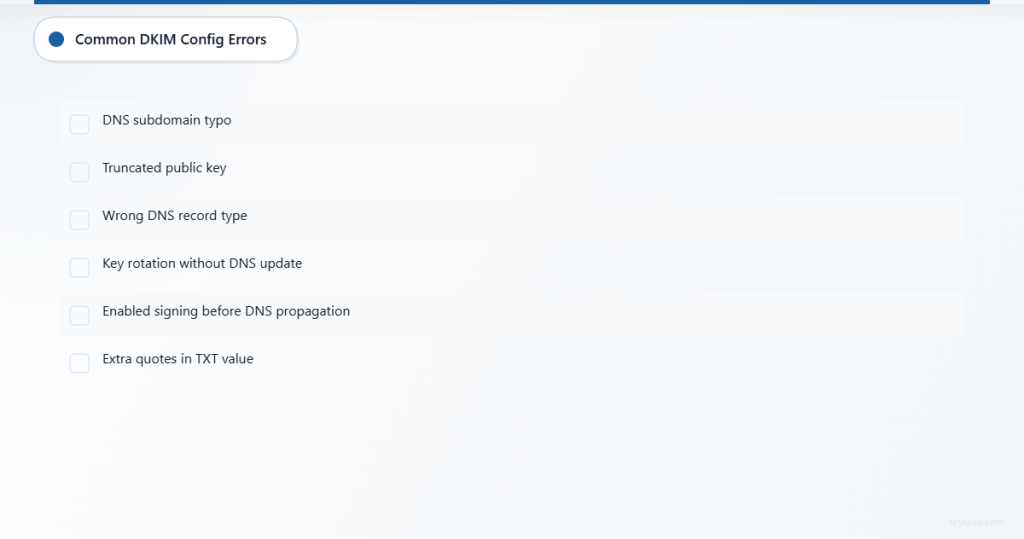
1. Enabling Signing Before DNS Propagates
Problem: All outgoing messages fail DKIM validation for hours or days.
Fix: Wait 24-48 hours after publishing the public key before clicking “Start authentication.”
2. Using Personal Gmail Accounts with Custom Domains
Problem: Gmail personal accounts don’t support DKIM signing for custom domains when using “Send mail as.”
Fix: Migrate to Google Workspace or use a third-party SMTP service that supports DKIM (SendGrid, Mailgun, Postmark).
3. Publishing Only One DKIM Key for Multiple Senders
Problem: If your organization uses Google Workspace for corporate email but also sends from marketing platforms (Mailchimp, HubSpot), those third-party senders need their own DKIM keys with different selectors.
Fix: Add separate DKIM TXT records for each sender:
google._domainkey.example.com(Google Workspace)k1._domainkey.example.com(Mailchimp)hubspot._domainkey.example.com(HubSpot)
4. Forgetting to Update DNS After Key Rotation
Problem: When you generate a new DKIM key pair in Google Workspace (for security reasons or after a key compromise), messages fail DKIM until the new public key is published.
Fix: Always publish the new public key in DNS before generating a new key in Google Admin Console.
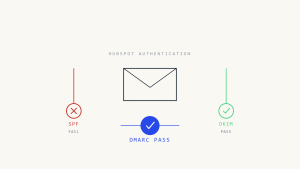
5. Assuming DKIM Pass = DMARC Pass
Problem: DKIM signatures can pass validation but still fail DMARC if alignment is missing.
DMARC alignment requirement: The d= domain in the DKIM signature must match the From: header domain (or be a subdomain of it, depending on alignment mode).
Example failure scenario:
- Message sent from
[email protected] - DKIM signature has
d=mailprovider.com - DKIM passes, but DMARC fails because
mailprovider.com≠example.com
Fix: Configure third-party senders to use your domain in the d= value, or implement SPF alignment as a fallback.
IX. DKIM, SPF, and DMARC: How They Work Together
DKIM alone improves deliverability, but it doesn’t enforce a policy against spoofing. DMARC ties everything together.
DMARC requirements:
- At least one authentication mechanism (SPF or DKIM) must pass
- At least one passing mechanism must align with the
From:header domain
Example: Aligned DKIM pass = DMARC pass
From: [email protected]- DKIM signature:
d=example.com(aligned) - DKIM result:
pass - DMARC result:
pass
Example: Unaligned DKIM pass = DMARC fail
From: [email protected]- DKIM signature:
d=thirdpartymail.com(not aligned) - DKIM result:
pass - DMARC result:
fail(if SPF also fails)
Where DMARC can fail despite DKIM passing:
- SPF passes but envelope sender doesn’t align with
From:header - DKIM passes but signature domain doesn’t align with
From:header - Message forwarded through a system that modifies content (breaks DKIM)

Use Skysnag Protect to monitor DMARC alignment across all senders and identify where authentication succeeds but DMARC fails:
X. When DKIM Passes but Deliverability Still Suffers
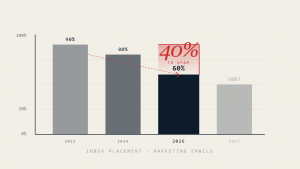
Passing DKIM validation doesn’t guarantee inbox placement. Mailbox providers evaluate multiple signals:
Authentication + Reputation + Content
- Authentication: DKIM, SPF, DMARC
- Reputation: IP/domain history, complaint rates, engagement metrics
- Content: Subject lines, body text, links, attachments
Failure scenarios:
- DKIM passes, but domain reputation is poor: Messages land in spam despite valid signatures
- DKIM passes, SPF passes, but DMARC fails: Some receivers filter more aggressively on DMARC failures
- DKIM passes, but content triggers spam filters: Phrases like “act now,” excessive links, or suspicious attachments override authentication
What mailbox providers don’t guarantee:
- Gmail, Microsoft, Yahoo, and Apple don’t publish exact filtering rules
- DKIM passing doesn’t create a “whitelist” status
- Authentication helps, but it’s not the only factor
To improve deliverability after DKIM is configured:
- Implement DMARC enforcement (
p=quarantineorp=reject) - Monitor complaint rates and unsubscribe requests
- Maintain clean email lists (remove invalid addresses)
- Avoid spam-like subject lines and excessive promotional language
XI. DKIM Key Rotation and Security Best Practices
When to rotate DKIM keys:
- Every 12 months (general best practice for cryptographic keys)
- Immediately after suspected key compromise
- When onboarding new administrators (limit key exposure)
How to rotate DKIM keys without breaking authentication:
- Generate a new key pair in Google Workspace Admin Console with a different selector (e.g.,
google2._domainkey) - Publish the new public key in DNS alongside the old key
- Wait 48 hours for DNS propagation
- Switch signing to the new key in Google Admin Console
- After confirming the new key works, delete the old DNS record
Key rotation failure mode: If you delete the old public key before switching signing to the new key, messages will fail DKIM validation during the transition period.
Better approach: Keep both keys active during the transition, then deprecate the old key only after confirming all messages use the new signature.
XII. Subdomain DKIM Configuration
If you send email from subdomains (e.g., marketing.example.com, support.example.com), each subdomain requires its own DKIM configuration.
Google Workspace approach:
- Add the subdomain to your Google Workspace account (if not already added)
- Generate DKIM keys for the subdomain in Google Admin Console
- Publish a TXT record at
google._domainkey.marketing.example.com - Enable DKIM signing for the subdomain
Failure condition: If you only configure DKIM for the parent domain (example.com), messages sent from marketing.example.com won’t have valid DKIM signatures unless the subdomain is explicitly configured.
DMARC alignment with subdomains:
- Strict alignment: DKIM
d=must exactly match theFrom:domain - Relaxed alignment (default): DKIM
d=can be the parent domain (e.g.,d=example.comaligns withFrom: [email protected])
Relaxed alignment is usually sufficient. Use strict alignment only if you need to prevent subdomain spoofing in DMARC reports.
XIII. Monitoring DKIM and DMARC Compliance
After configuring DKIM, monitor authentication results through DMARC aggregate reports.
What DMARC reports show:
- Which senders are signing messages with DKIM
- Which DKIM signatures pass or fail
- Whether passing DKIM signatures align with the
From:domain - Whether SPF is also passing (and aligned)
Interpreting DKIM failures in DMARC reports:
dkim=fail: Signature doesn’t match (message modified, wrong key, or key rotation issue)dkim=temperror: DNS lookup failed (temporary issue)dkim=permerror: Public key not found or malformeddkim=none: No DKIM signature present
Why monitoring matters:
- Detects unauthorized senders attempting to spoof your domain
- Identifies misconfigured third-party services (ESPs, CRMs, support tools)
- Highlights forwarding issues (mailing lists breaking DKIM signatures)
- Provides evidence for compliance programs where email authentication monitoring is part of the organization’s broader security control set
- Helps confirm that Google Workspace, third-party senders, and subdomains remain properly authenticated over time
Learn more about Skysnag Protect:
DKIM Gmail Setup Checklist
Use this checklist to confirm your Google Workspace DKIM configuration is complete and working as expected.
- Confirm you are using Google Workspace, not a personal Gmail account with a custom “Send mail as” address.
- Log in to the Google Workspace Admin Console with super admin privileges.
- Go to Gmail authentication settings and generate a DKIM record for your domain.
- Use a 2048-bit DKIM key where supported.
- Copy the selector and public key exactly as provided by Google.
- Publish the DKIM public key as a DNS TXT record.
- Verify the TXT record resolves correctly before enabling DKIM signing.
- Start DKIM authentication in Google Workspace only after the DNS record is visible.
- Send test emails to Gmail, Outlook, and another mailbox provider.
- Check message headers and confirm dkim=pass.
- Confirm the DKIM d= domain aligns with the visible From domain.
- Configure DKIM separately for third-party senders such as CRMs, marketing tools, and support platforms.
- Monitor DMARC aggregate reports to confirm DKIM alignment across all senders.
- Avoid assuming DKIM pass means DMARC pass.
- Review DKIM selectors and key rotation procedures regularly.
Key Takeaways
DKIM helps receiving mail servers verify that messages signed by your domain were authorized and not modified in transit.
For Gmail-based business email, DKIM setup should be handled through Google Workspace. Personal Gmail accounts do not provide the same domain-level DKIM control for custom domains.
DKIM alone does not prevent domain spoofing. It becomes stronger when combined with SPF and DMARC, especially when DMARC alignment is monitored and enforcement is applied.
The most common Gmail DKIM setup failures are DNS formatting errors, wrong selector names, truncated TXT records, enabling signing before DNS propagation, and assuming third-party senders are covered by Google Workspace DKIM.
DKIM pass does not guarantee inbox placement. Mailbox providers still evaluate reputation, complaint rates, content, engagement, forwarding context, and internal abuse signals.
DMARC monitoring is the best way to confirm whether DKIM signatures are passing and aligning across all legitimate senders.
Start DMARC monitoring with Skysnag and get your free DMARC record: